
Manage Projects
After you login, you will see the 'Project Library' page that lets you create, view and manage projects:
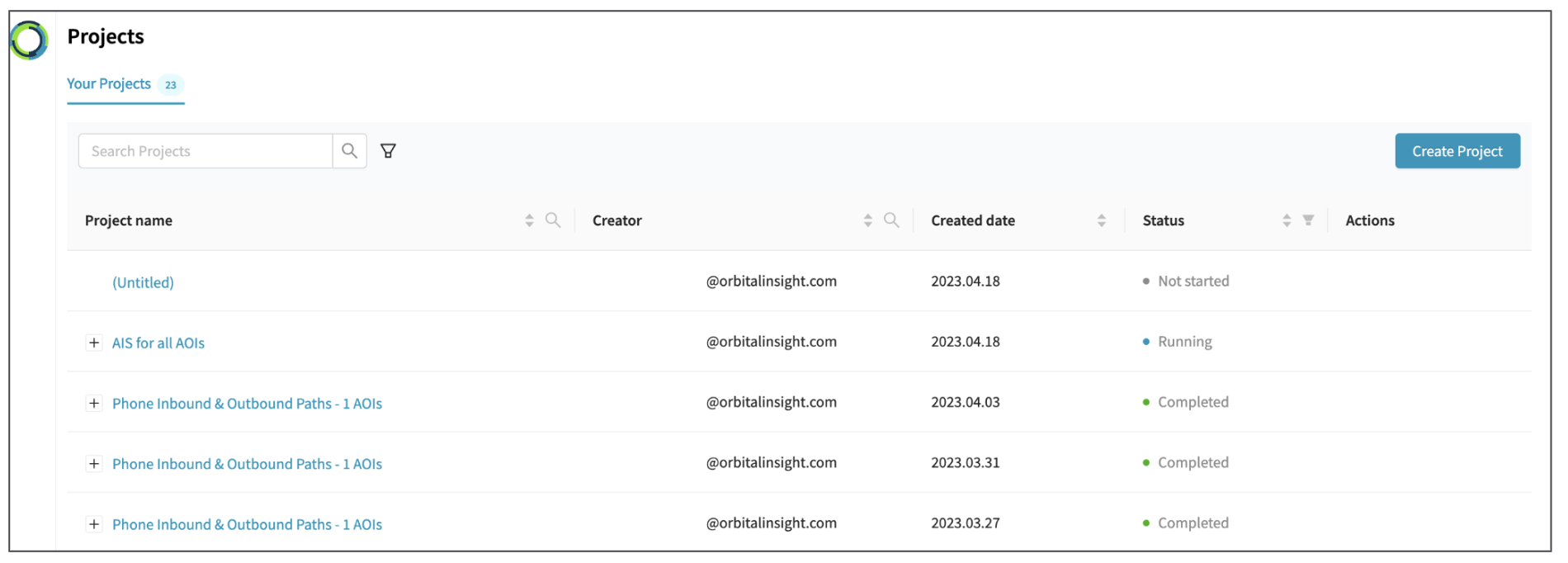
The Project Library page will provide you with options to:
1. Create a Project
What are projects?Elements projects are analyses configured by you to ask questions about the world. You determine where to look (areas of interest), what to count & measure (analysis), and when (time of interest).
You may have as many projects as you need, each asking different questions.
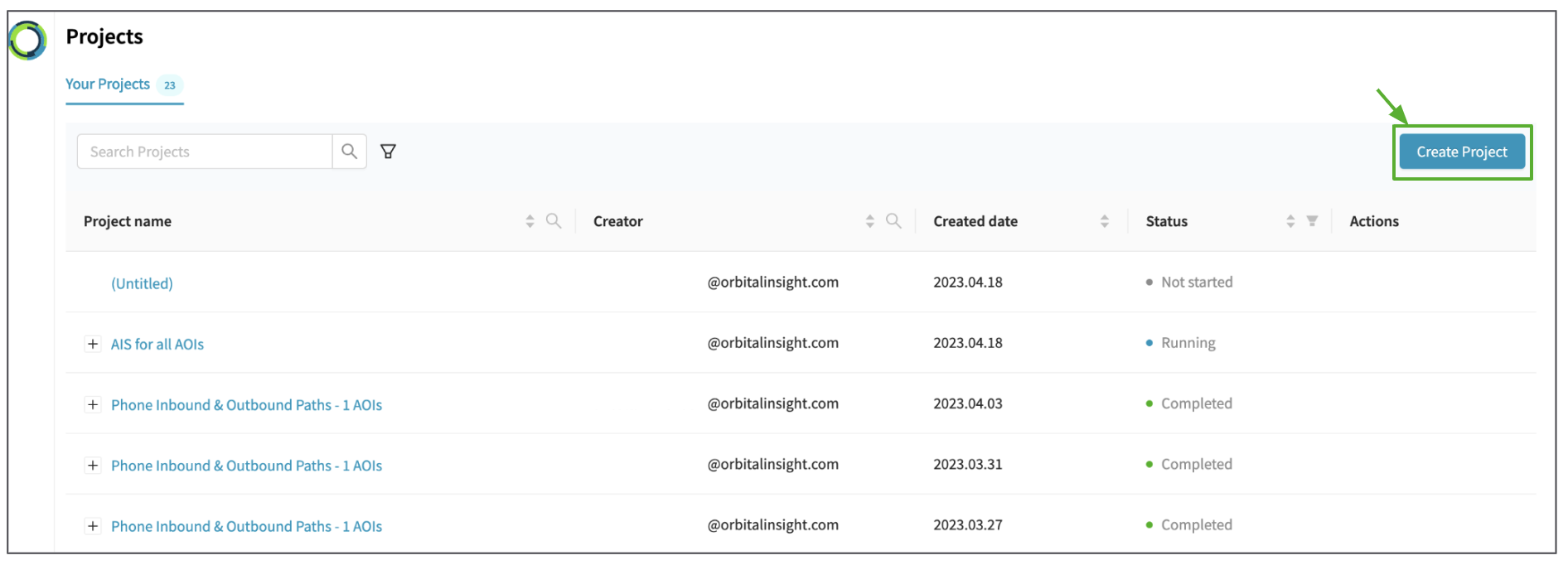
You can click the 'Create Project' button to direct you to the 'Project Creation' page.
For next steps, please read the section on 'Creating a Project'.
As below, your project will be listed in the order of the created date.
2. Visualize Analysis Results
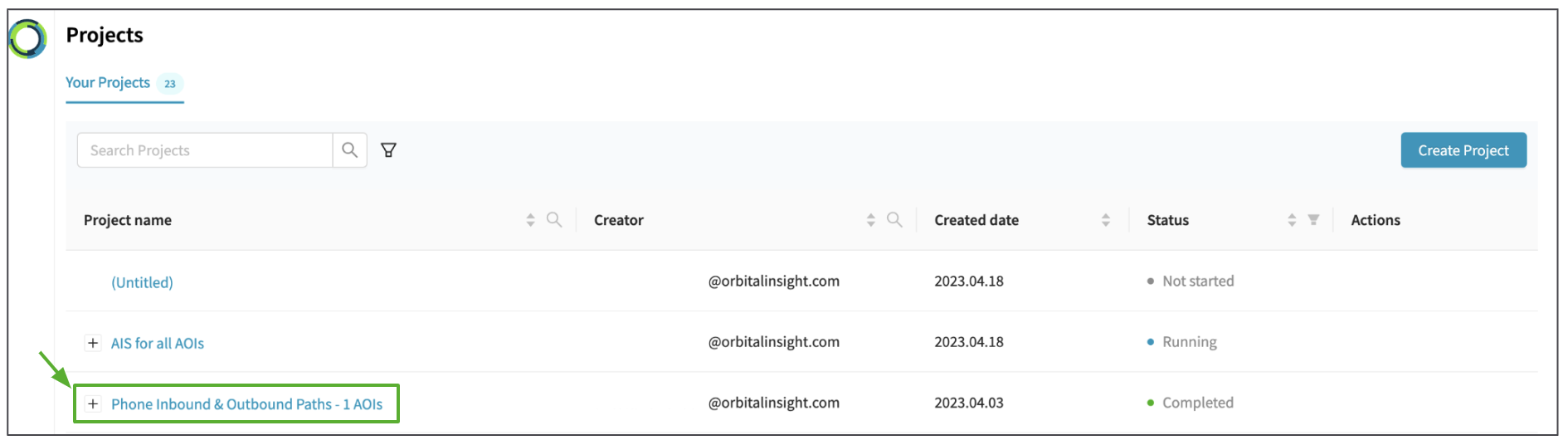
When you click the name of a 'Completed' or 'Running' project, you will be directed to the 'Results' page.
For more details, please read the section on 'Visualizing Results (coming soon!) '.
3. View Projects
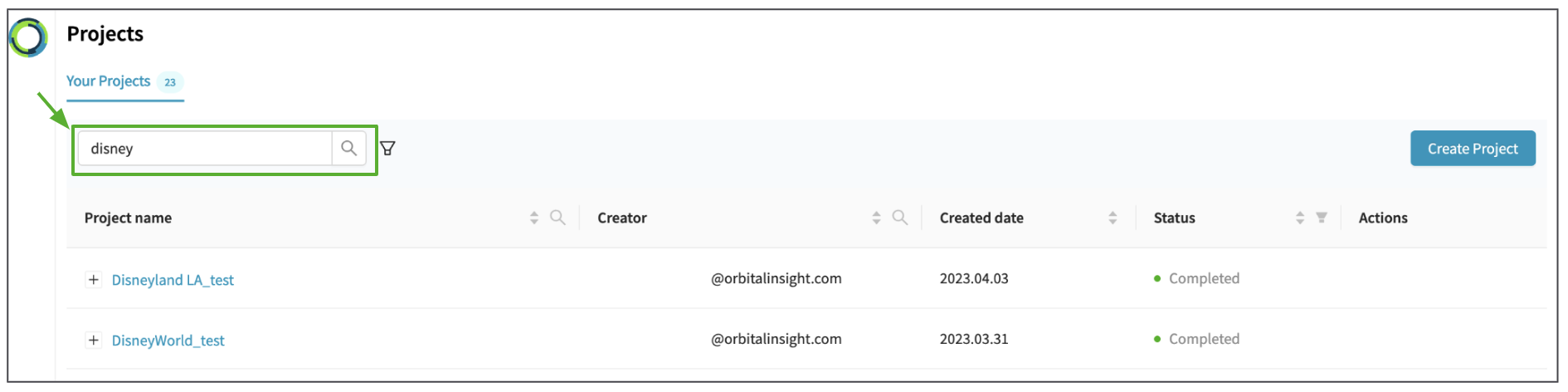
Search projects using a keyword
You can view all the projects in the project library.
The search bar will help you search for a project/s you are looking for using a project name keyword
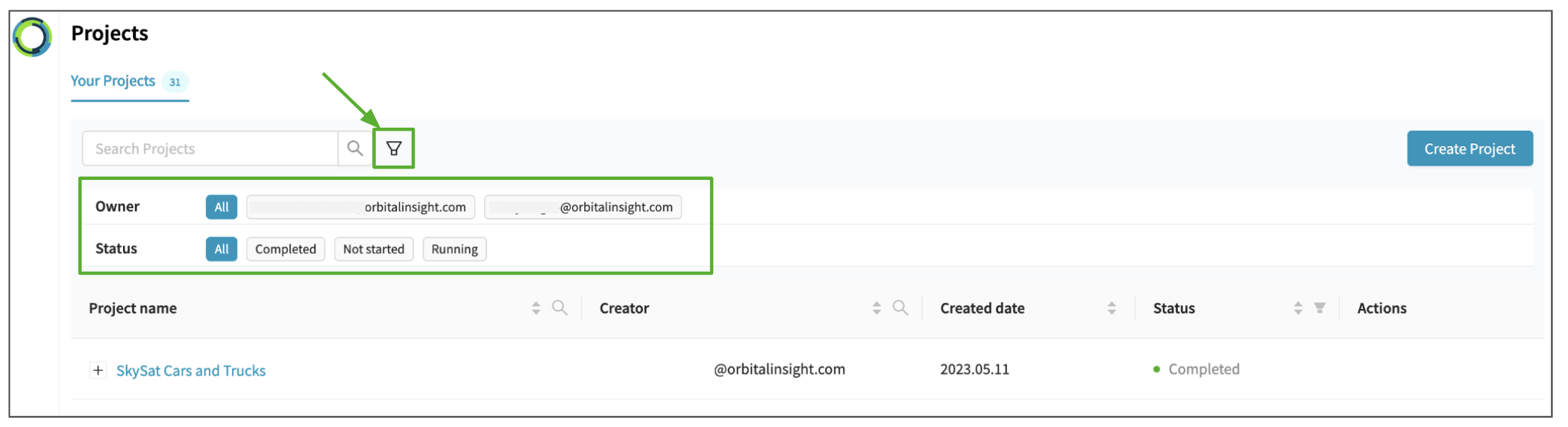
Filter projects using certain parameters
You have multiple parameters to choose from for filtering down the list:
Owner: You can multi-select the owner user names
Status: Select from the project running status - not started, completed and/or running
4. Manage Projects
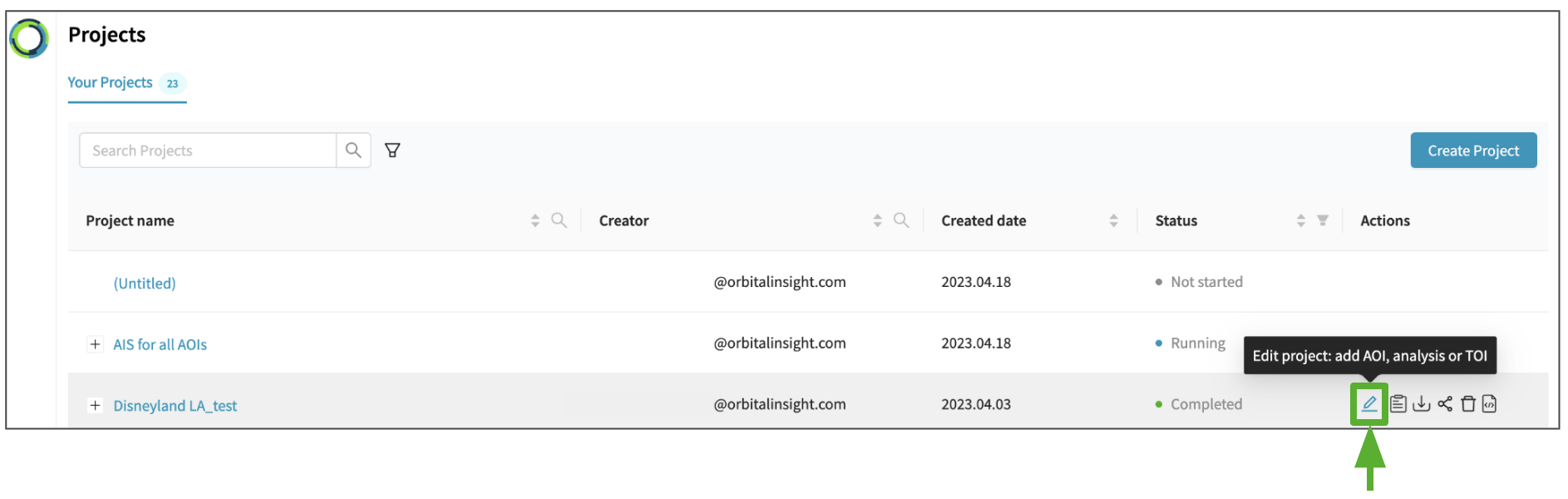
Edit a Project
You can now edit a 'completed' project.
Once you click the 'Edit Project' icon, you will be directed to the 'Project Creation' page
For details, please read the section on 'Editing a Project'
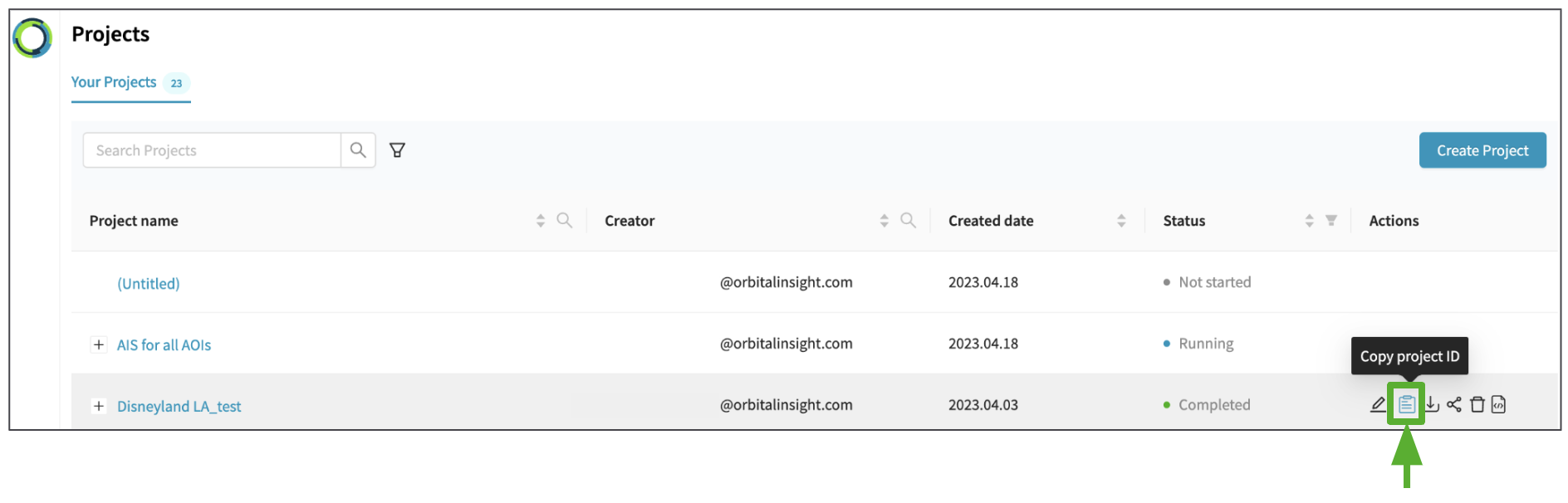
Copy Project ID
This will help you copy the project id that will be needed for further troubleshooting when you reach out to Orbital Insight's support team.
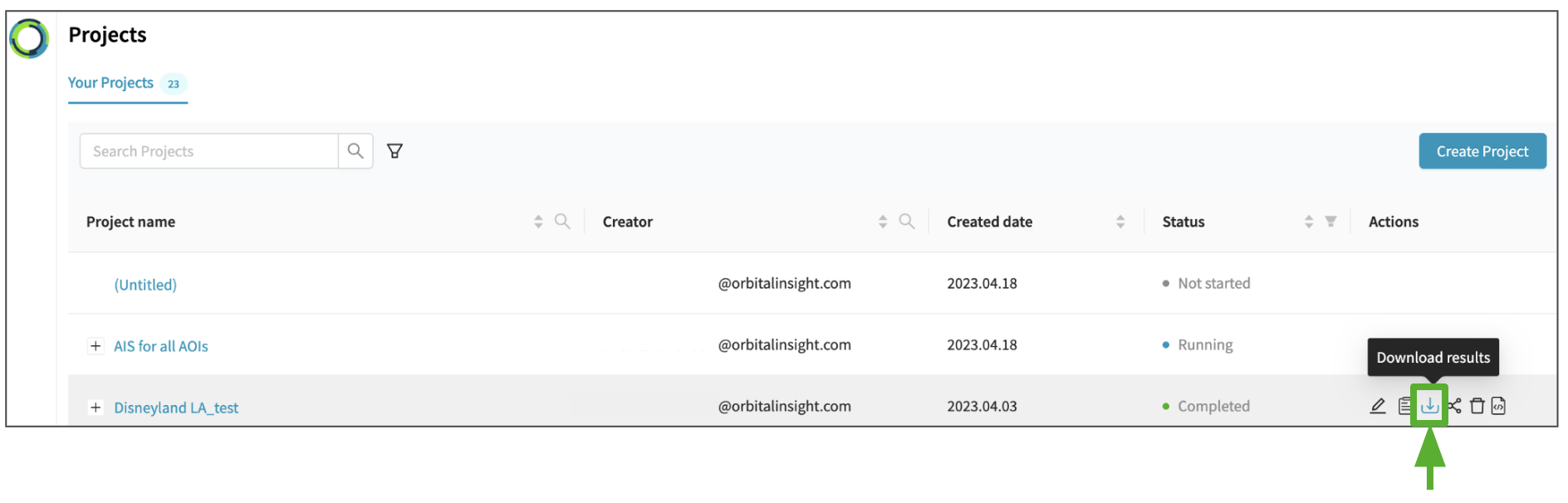
Download Results
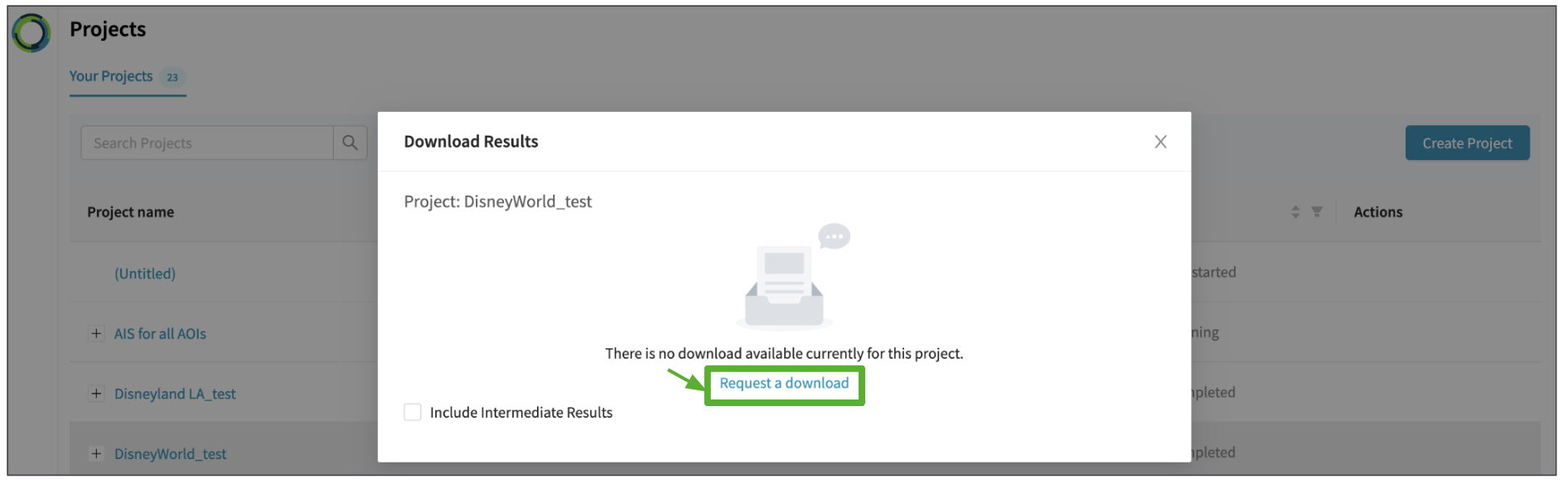
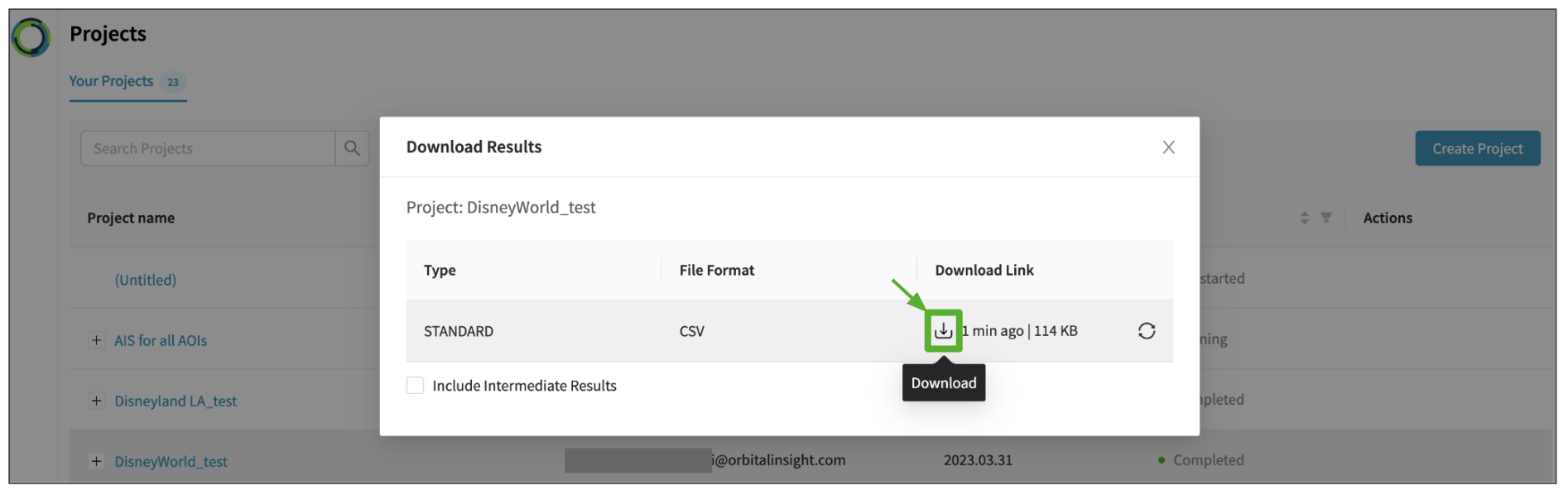
This will help download the project results as a .csv file.
You will be first directed to a 'Request Download Window'.
Once you click 'Request a download', you will be in the queue and after a while you can download your result.
Share a Project (Beta)
If you are the project owner, you can share projects with other users in order to collaborate.
For example, multiple users may collaborate together in defining AOIs and algorithm configuration.
You can also share a project so that other users can view its results.
There are 2 levels of sharing permissions:
- Viewer: Able to view project settings. Full access to results.
- Editor: Able to modify & run project, but cannot delete the project. Full access to results.
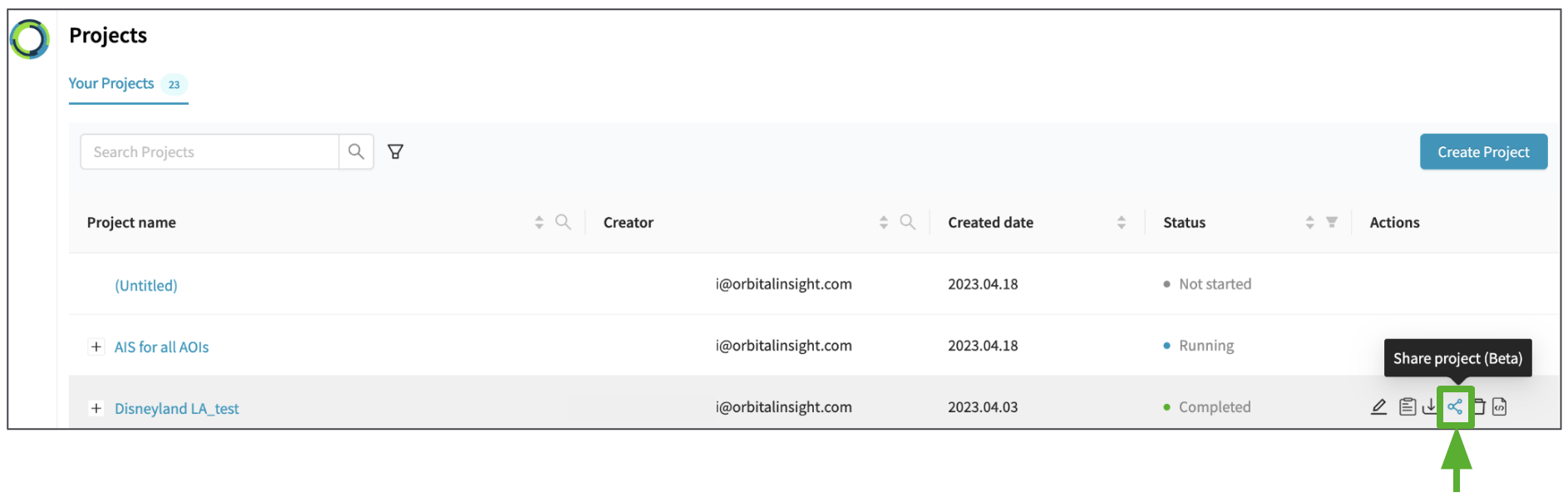
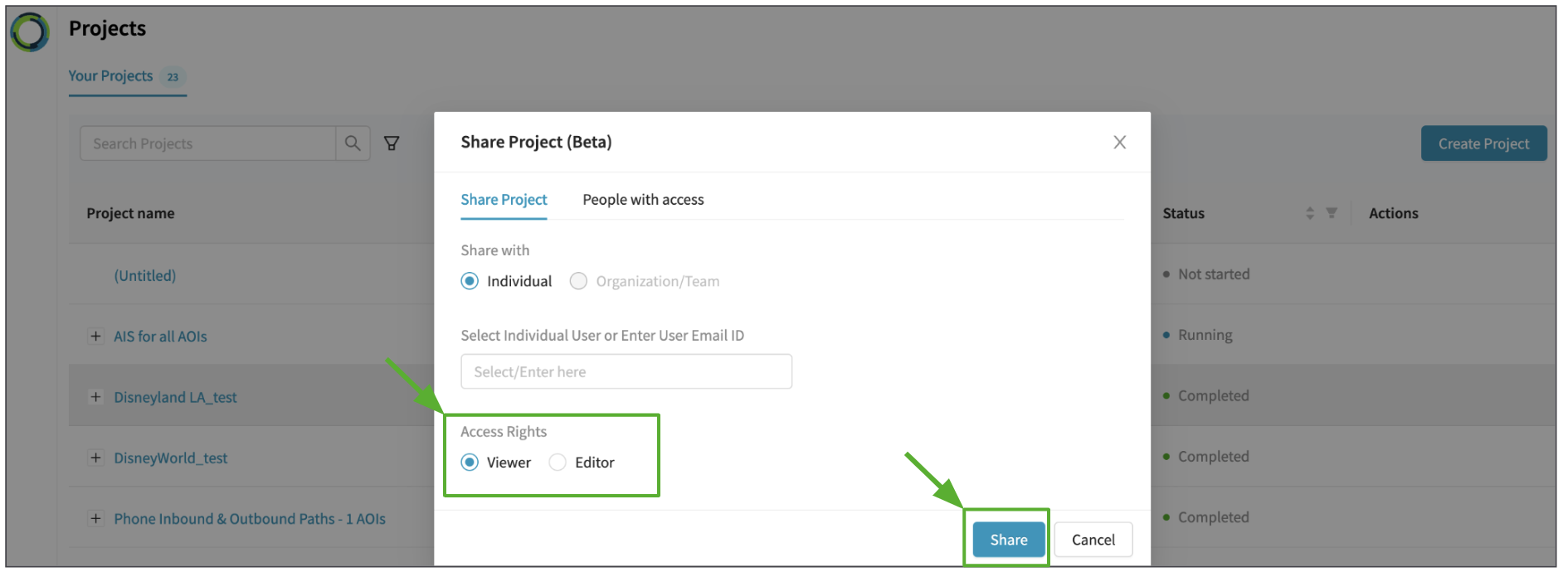
You can share your projects in the following steps:
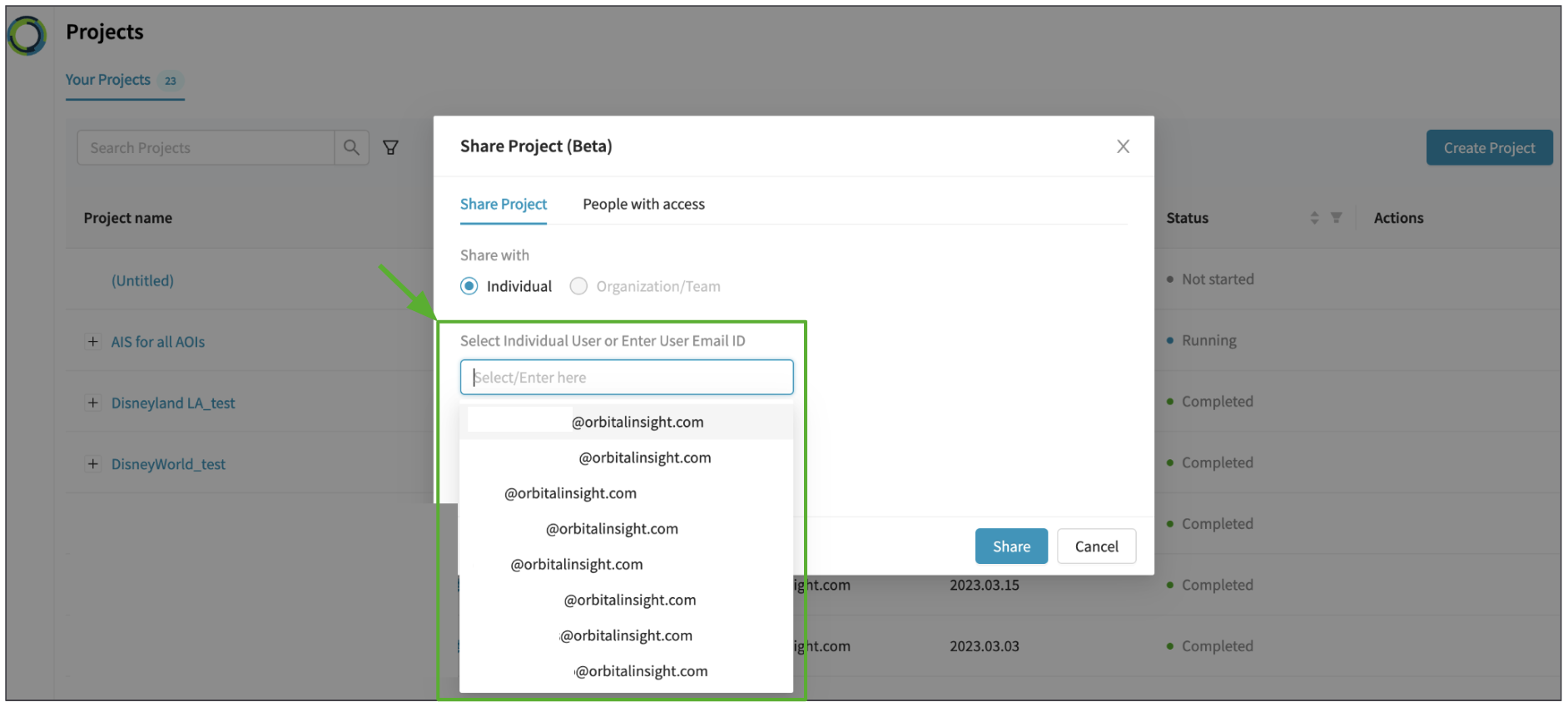
Once you click the 'Share Project' icon, select the user that you want to share the project with, or enter their user ID if they don't appear in the list. Then select the sharing permission level, and finally click "Share".
(You may select multiple users to share to at a time.)
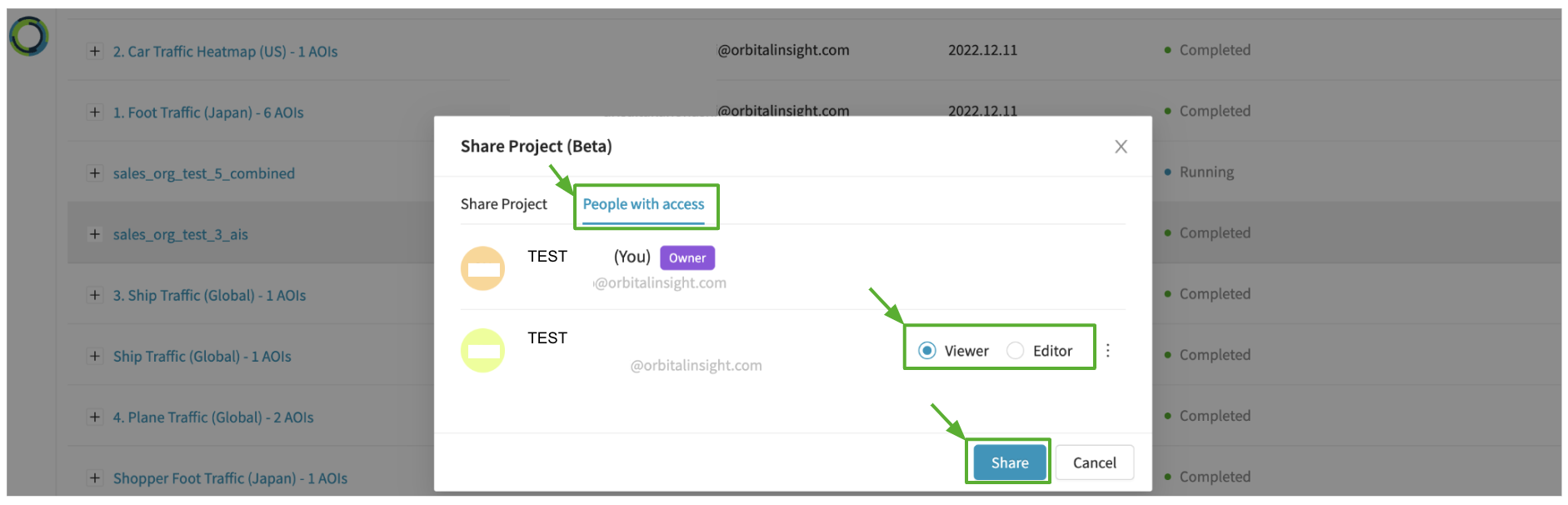
“People with access” tab will contain all those users who is having access to the project.
User can also update the access rights of the existing users in this tab.
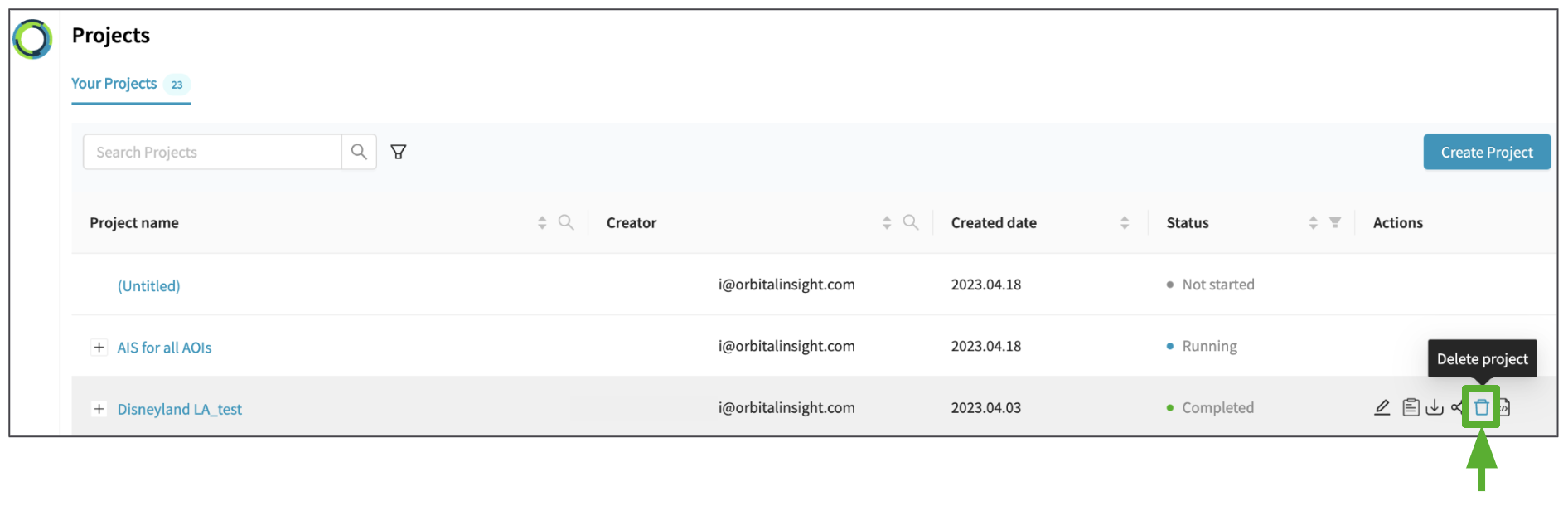
Delete a Project
You can delete a 'not started', 'running' or 'completed' project using the delete icon.
Share an AOI (copy the AOI to geojson or wkt)
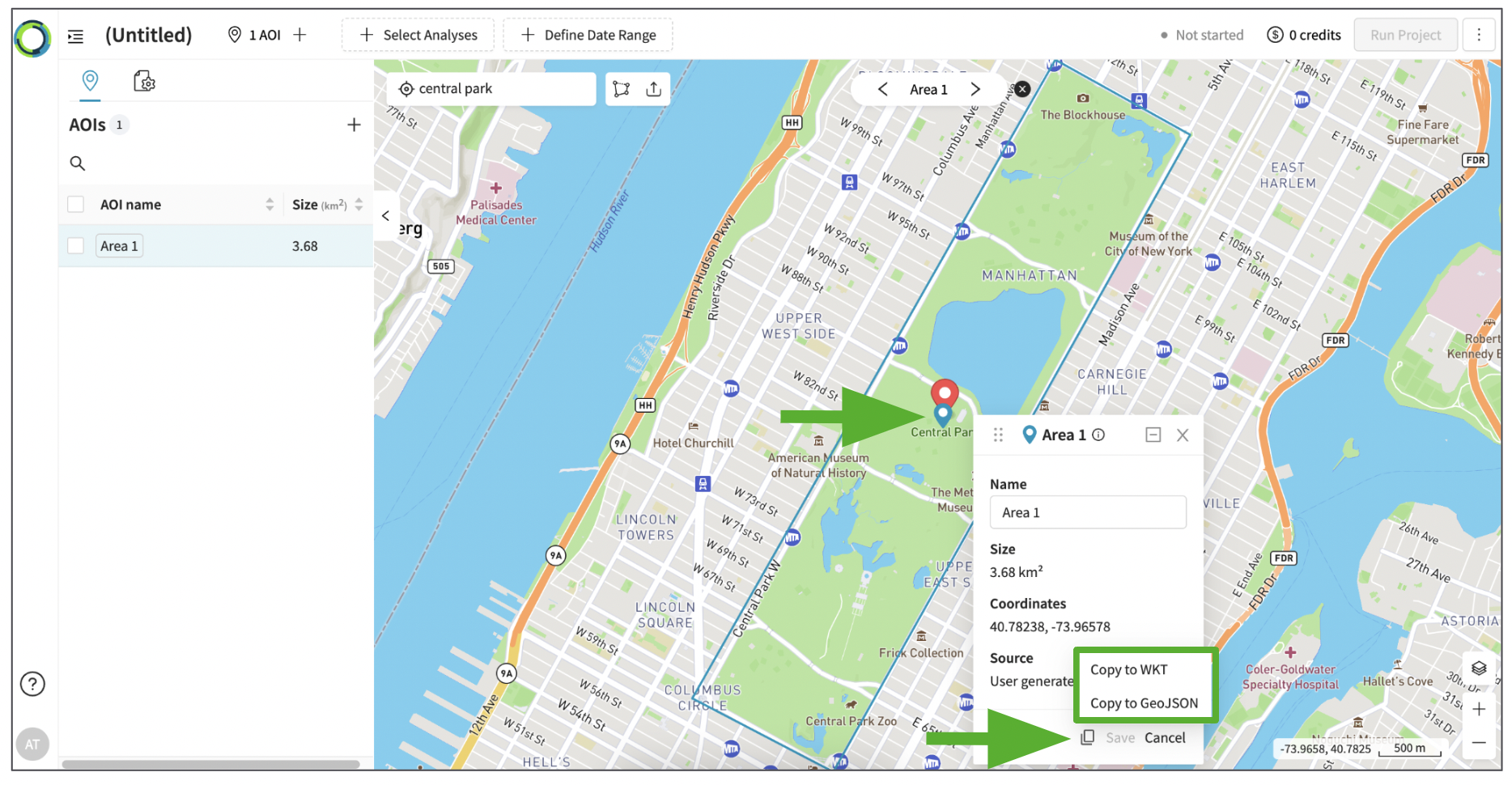
Follow the steps below to share an AOI with other users:
Step 1. Click on the AOI
Step 2. Click on the "Copy to WKT or GeoJson" icon
Step 3. Select from either "Copy to WKT" or "Copy to GeoJSON"
Step 4. Paste the information to anyplace and share with other users
Updated 10 months ago