
Edit a Project
Once your project is completed, you can make edits and rerun the project by following four steps:
(Please note you cannot edit a project while they are still running.)
1. Triggering 'Project Edit' Action
You can trigger the action to edit a project in two ways:
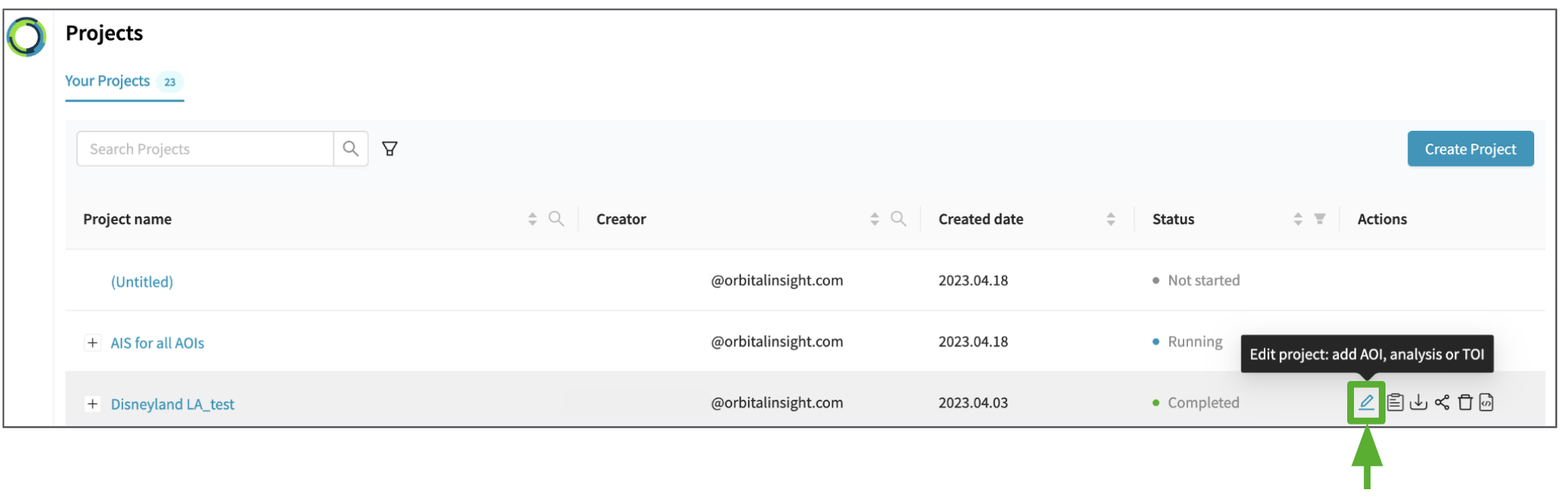
- Click the 'Edit project' icon on the Project Library page
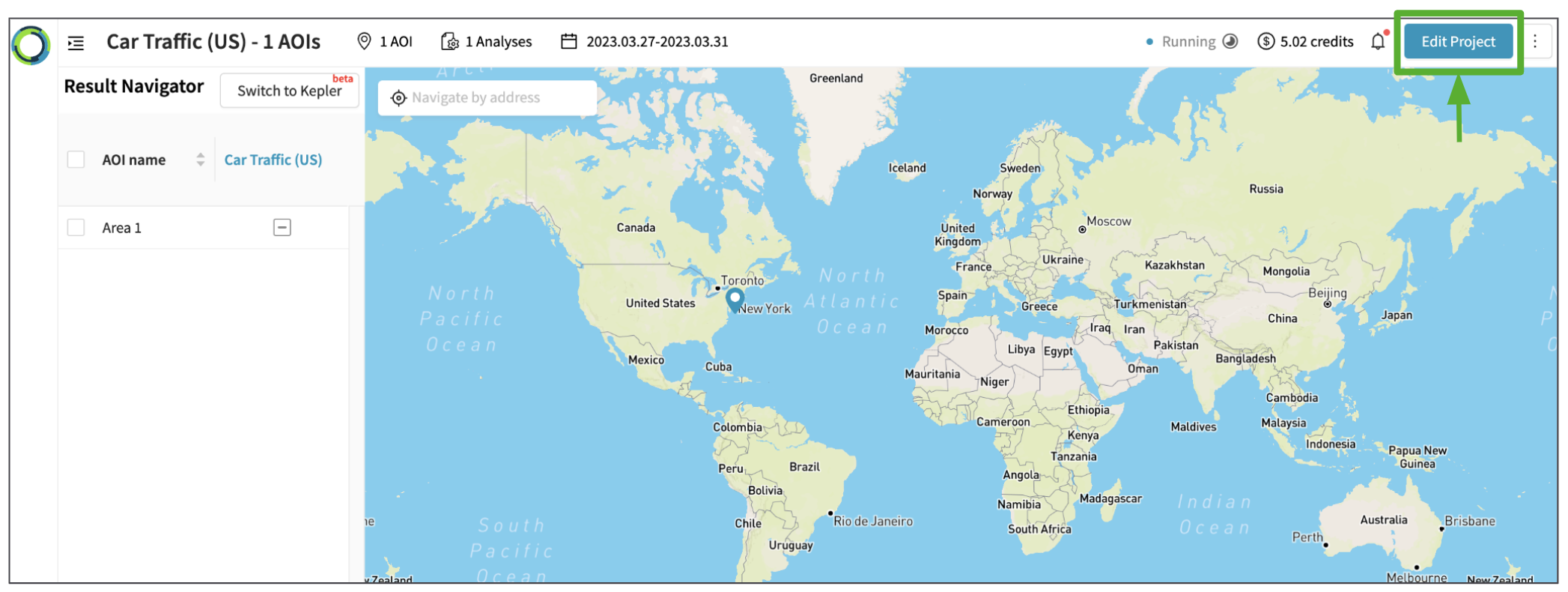
- Click the 'Edit project' on the Project Results page
2. Make edits
Both the above actions will take you to the project creation page where you can perform 3 main edit actions today:
- Add one or more Area of Interests (you cannot edit or delete already ran AOI)
- Add one or more Analysis/es (you cannot edit or delete already ran Analysis)
- Extend the Times of Interest - forward or backward (you cannot shorten the time range)
Each of the above steps are the same steps you follow when you create a project.
3. Re-run Edited Project
If you have performed any of the available edit actions option, you will see:
- Updated 'credits' for the edits made
- Enabled 'Run Project' button to run the edited project again
After reviewing the credit, click 'Run Project' to start the analysis.
4. Visualize Edited Results
After you are directed to the 'Results Page' and the status linked to the newly added AOIs, Analysis/es or TOIs shows as 'completed', you will be able to visualize the time series and/or map visualization linked to the updated project.
Updated 9 months ago